

Crelio (LiveHealth) sync
If your organization runs on a CrelioHealth LiveHealth lab, you can connect it to Revenue Guard and pull the lab’s insurance master directly into your payers — so you don’t have to create payers by hand.
Onboarding a lab
Connecting a lab is a one-time step per organization.
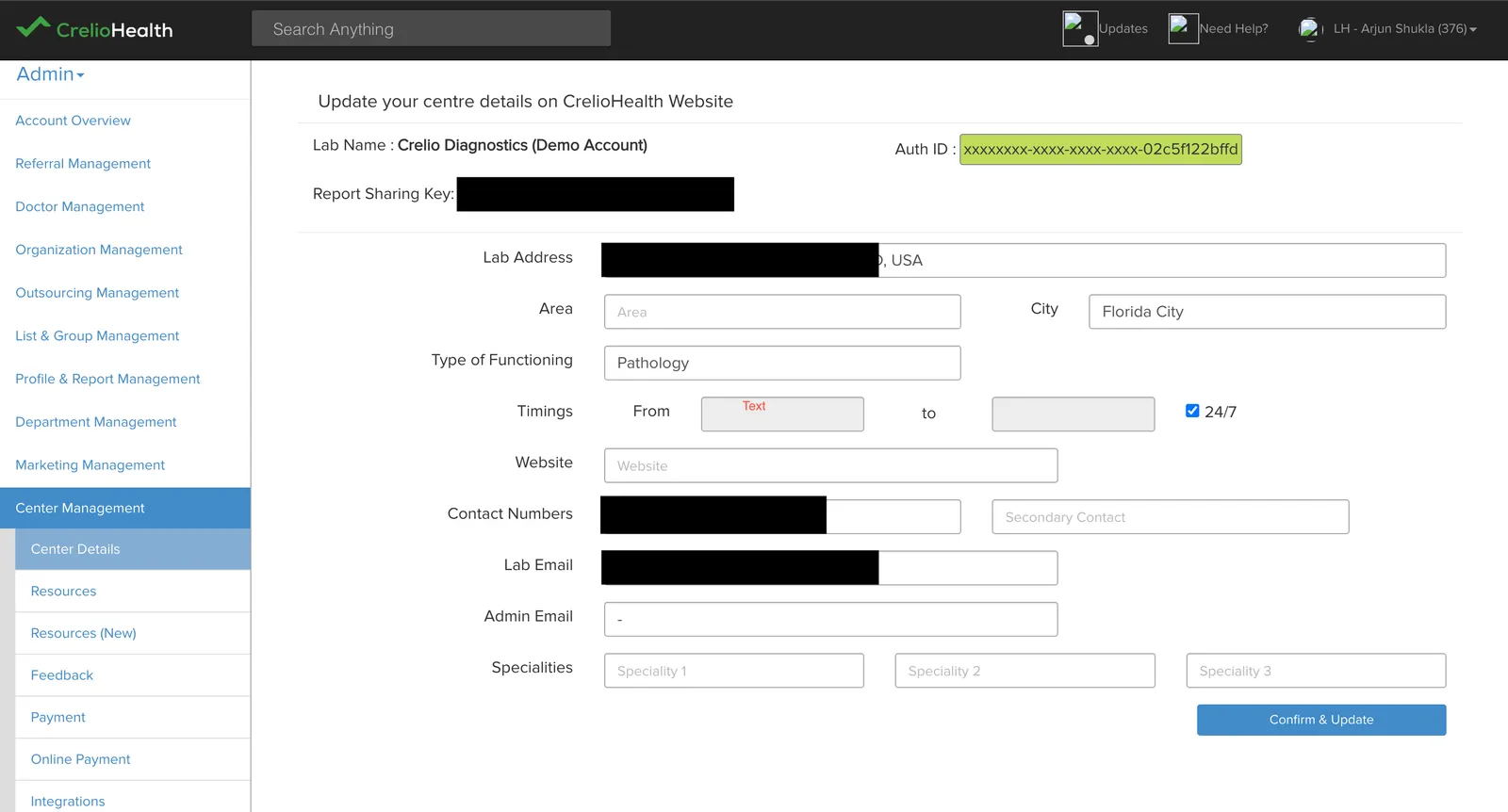
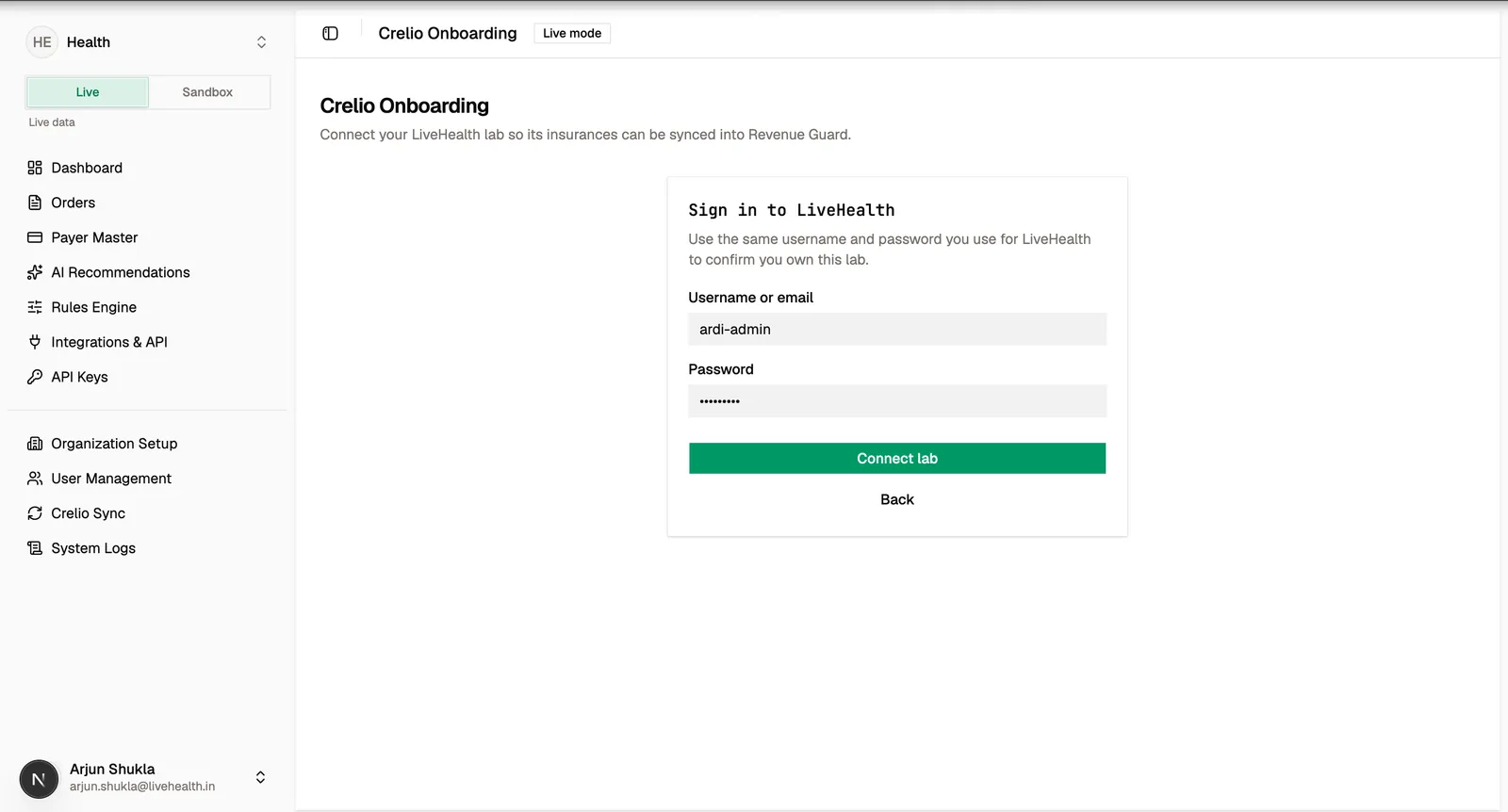
Each organization links to a single LiveHealth lab. The link stores the lab and lab-user details and is used by insurance sync to know which lab to pull from.
Syncing insurances into payers
Once a lab is linked, you can import its insurances as payers from the Crelio Sync page.
Start a sync
Trigger a sync for the active environment. The import runs asynchronously, so the page returns immediately and tracks progress.
Watch progress
The sync job moves through queued → running → completed (or failed), reporting how many payers were created and updated.
Review the imported payers
Imported insurances appear in Payer Master for the active environment, ready for policy documents and rule extraction.

The lab link is set once per organization, but insurance sync is environment-scoped — run it in each environment where you want the imported payers to appear.